How to Use the Adobe Developer App Builder Template Registry
Adobe Developer App Builder’s Template Registry enables developers to discover and manage App Builder templates — essentially reusable code packages that can be utilized to simplify the creation of Adobe Developer App Builder apps — all in one place. This can significantly speed up the process of building custom applications that extend and integrate with Adobe Experience Manager and other Adobe solutions.
The benefits of the Template Registry, a collaboration between the Adobe Developer App Builder team and the DevX Service team, are to have one centralized place to store and manage templates and help developers increase the visibility of their templates, have them easily discovered via AIO CLI, have them reviewed and endorsed by Adobe, and improve the level of trust end users place in a template.
Start building your own app builder template
Your template, written in Yeoman, will run code that can install and edit files for an App Builder app. A template is also a separate npm package. The install.yml file will include directives that will further configure the workspaces and APIs that are needed for your template.There are a couple simple steps to start building your own template.
- Install NodeJS 14 or higher.
- Run npm create @adobe/aio-app-template <template_name> (supplying the desired name of your template where <template_name> is).
- Change directory into the created folder, and edit the files below.
install.yml
See the specification for a valid install.yml file.
Set the following keys to the desired values. When a template is installed, these keys will be parsed to set up the App Builder project.
- categories: used to filter for templates that can be installed
- apis: list of APIs that need to be installed into the project to support the template’s usage
- workspaces: list of workspaces that should be created in the project
- runtime: indicates whether Adobe I/O Runtime should be added to the project
src/index.js
When installed, your template will run the Yeoman generator at src/index.js. When run, the current working directory will be the root path of the App Builder app.
- If you are creating an Action template, use this template as a reference. Common constants (e.g. API service codes) can also be found in the template.
- This leverages this library and overrides the base ActionGenerator.
- See the writing() method on how to configure the action.
- Try to modularize your code into several generators, if possible.
- Use composition to assemble different generators together. For example, the app-excshell generator uses these two generators:
- To compose another generator in your generator, see here.
- The aio-cli app plugin will pass these options to your generator, which may or may not apply to your generator:
- skip-prompt (boolean). If set to true, skip any interactive prompts and apply defaults.
- force (boolean). If set to true, when prompted to overwrite files, automatically overwrite them.
- skip-install (boolean). If set to true, then yeoman will skip installing dependencies in package.json after the generator is run.
- When your generator is run, it will be run with the same working directory as the root of the project it is installed in (you can access this as this.destinationPath() in the generator class).
- See here for how to write files and add dependencies to package.json.
- Make sure you understand the Yeoman Run Context for the different method priorities: https://yeoman.io/authoring/running-context.html.
- See here for writing unit tests for your generator.
Testing your template
- Run npm test to run unit tests located in the test folder. The unit tests use Jest.
- Run npm run e2e to run the template generator itself. This will create a sub-folder called temp-template-test, and the generator will be run within it.
Adding and removing templates to the Template Registry
There are two ways to submit templates to be added to the App Builder Template Registry.
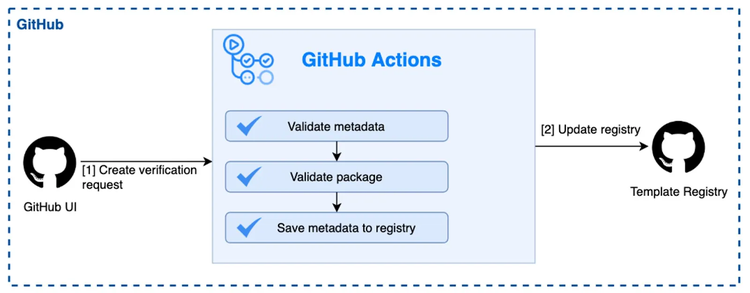
The first one is through the GitHub UI by opening an issue to the github.com/adobe/aio-template-submission/ repository. The prebuild issue templates are self-explanatory and help navigate through the submission.
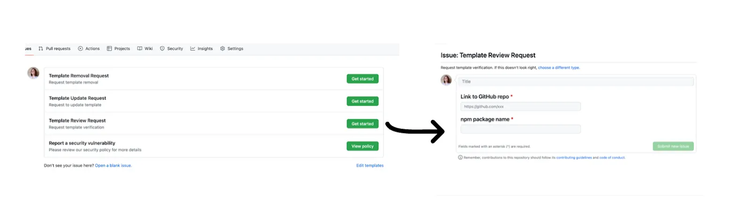
After creating a template review request, GitHub Actions will provide the validation of the uploaded template. If there’s an error, a validation error message will be added to the issue, allowing Adobe to communicate with the developer. Once the validation is complete, the template will be added to the Template Registry, and GitHub will close the issue.
Third-party developers will be able to add their own templates to a public GitHub repo (which requires a manual review by Adobe before approval), and they can use all of GitHub’s out-of-the-box functionality that they’re familiar with, too (i.e., with GitHub Actions and the common flow to submit feature requests).
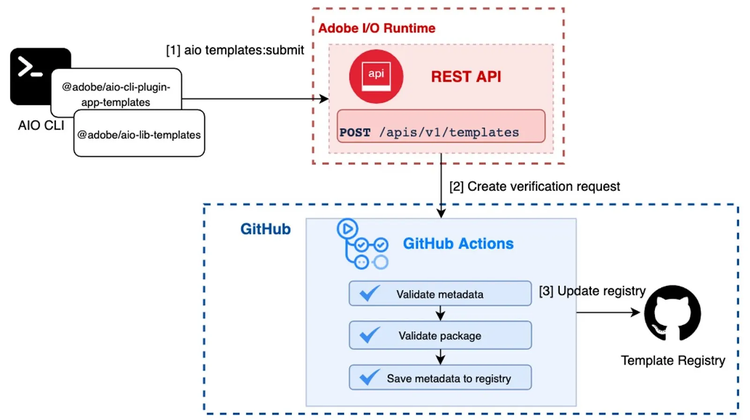
Developers can also add templates to the Template Registry via the AIO CLI, and as a result, the appropriate issue will be created on GitHub with data specified by the developer.
The following commands are available to manage templates:
- aio templates:submit Submit an Adobe Developer App Builder template
- aio templates:remove Remove an Adobe Developer App Builder template from the Template Registry
- aio templates:discover Discover App Builder templates to install
- aio templates:install Install an Adobe Developer App Builder template
- aio templates:info List all App Builder templates that are installed
- aio templates:rollback Clears all installed templates
- aio templates:uninstall Uninstall an Adobe Developer App Builder template
Initializing Adobe Developer App Builder applications from templates
To create a new Adobe Developer App Builder app from templates, first connect to the Template Registry to get a list of templates to initialize the project with (via the path aio app init). You can also directly initialize a project with a template using the path aio app init — template link-to-template — template link-to-another-template), which requires a link or NPM package. Finally, the path aio app init — no login connects to the App Builder Template Registry to get a list of templates to initialize the project without being logged in (code download only).
The API Mesh template use case
The API Mesh template was built to bootstrap Adobe Developer App Builder API Mesh projects. It requires Runtime and the API Mesh plugin, which allows developers to configure multiple APIs and other sources and serve them through a single gateway.
The Template Registry release now allows us to choose a template to bootstrap their application from the beginning.
After running aio app init developers can choose a template to bootstrap different types of applications. The API mesh template, for example, allows developers to bootstrap and deploy API Mesh to a selected organization.
After installing the app from the API Mesh template (using aio app init), the API Mesh is set up on the developer workspace and ready to use.