Introducing a New Developer Distribution Portal for Listing UXP Plugins in the Creative Cloud Marketplace
We’ve launched a new website for distributing UXP plugins in the Adobe Exchange and the Marketplace in the Creative Cloud desktop app.
This announcement is for UXP plugin developers who wish to create a new listing or update an existing listing in the Creative Cloud Marketplace on the Adobe Exchange or in the Creative Cloud desktop app.

Adobe Developer Distribution is a new portal for Creative Cloud developers who wish to distribute new and manage existing UXP plugins in the Creative Cloud Marketplace, which can be found in the Stock & Marketplace tab in the Creative Cloud Desktop app and on the web within the Exchange Marketplace. The new Developer Distribution portal offers a powerful and flexible surface for developers to rapidly create and update listings, and receive approval with minimal reviewer turnaround time.
For developers with existing UXP listings
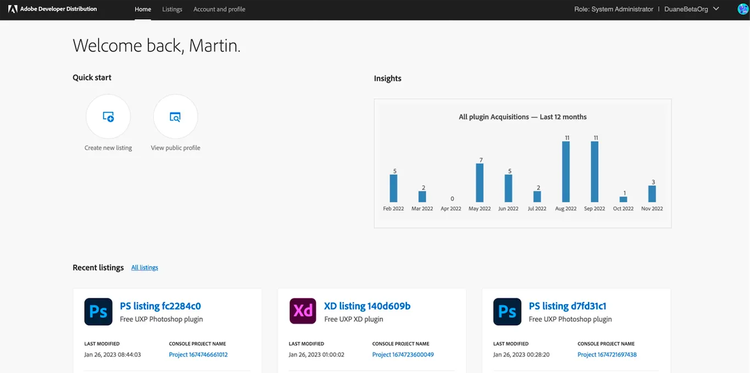
- Visit the Developer Distribution portal by navigating to https://developer.adobe.com/distribute
- UXP plugins developers who previously created a plugin or plugins using the Developer Console (https://developer.adobe.com/console) may now find and manage all of their existing listings on the new Developer Distribution portal.
- Use the Getting Started guide to learn more about how to update listings and publish new plugin versions in the new portal:
https://developer.adobe.com/developer-distribution/creative-cloud/docs/guides/getting_started/
- You can also log into Developer Console (https://developer.adobe.com/console/home) and you will be provided with a link to the new Developer Distribution portal to create a new marketplace listing or manage existing listings.
How to create a new UXP listing
- Use this Getting Started guide to learn how to start listing a new plugin in the Creative Cloud Marketplace: https://developer.adobe.com/developer-distribution/creative-cloud/docs/guides/getting_started/
- Visit the Developer Distribution portal by navigating to https://developer.adobe.com/distribute
- You can also log into the Developer Console (https://developer.adobe.com/console/home) and you will be provided with a link to the new Developer Distribution portal to create a new marketplace listing or manage your existing listings.
Key highlights of the new portal
- We now provide video support in UXP listings!
- Listing Insights — You can now see insights like plugin acquisitions by month and year. We plan to introduce additional insights in the future.
- You now have the ability to retract, recall, mark as pending, modify, and re-publish listings without contacting the Adobe Review Team.
- Metadata change request submission — You can now submit new metadata changes for active listings without requiring a new version upload or patch.
- Metadata change requests enable an accelerated review process, making it faster to update your listings in the marketplace.
- We have improved our error messages with hints to accelerate your submission process and minimize submission errors.
- Version management — Our new version management experience enables you to review older versions of your listings with ease.
- With the new Developer Distribution portal, you can manage your marketplace listings as well manage your Public Profile from a single place, which eliminates the need to go back and forth between the Developer Console and the Exchange Partner Portal.
What's Next
The Creative Cloud Extensibility Team’s goal is to provide you with a unified distribution platform that enables the management of all your Creative Cloud plugins from a single platform. In the coming months, we will work to enable the distribution and management of ZXP/CEP plugins on the new Developer Distribution portal.
FAQ
Q. What is the difference between the new Developer Distribution portal and the Exchange?
Answer: Both Developer Distribution and the Exchange are portals that enable developers to distribute their Creative Cloud plugins to the Adobe Exchange and the Marketplace in the Creative Cloud desktop app
- Developer Distribution helps developers distribute their UXP plugins to the Adobe Exchange and the Marketplace in the Creative Cloud desktop app. The Developer Distribution portal replaces the old UXP distribution workflows which were supported in Developer Console.
- Exchange or Exchange Partner Portal is the tool the developers need to use to distribute and manage their ZXP/CEP plugins. We are working hard to migrate all of the Exchange Partner Portal workflows to Developer Distribution which will then allow developers to manage all their plugins from a single portal irrespective of UXP or CEP plugins.
Q. For CEP plugins, should we still be using the Exchange Partner portal (https://partners.adobe.com/exchangeprogram/creativecloud) to submit for review?
Answer: Yes. Developers who build and list CEP plugins to our Marketplace will need to do so on Exchange Partner Portal
Q. I get “Access Denied” when I try to log in to the new Developer Distribution portal, where can I get help?
Answer: Try logging in with a “Personal” AdobeID instead of a company or school account as a temporary workaround. When you need to build something for a company or Enterprise, you’ll need to use your company’s AdobeID. This chart explains different types of Adobe IDs and logins: https://helpx.adobe.com/enterprise/using/identity.html#EditIdentity
Here are the steps to setting up developers in an Enterprise:
- Figure out who the “Adobe Admin” is at the Enterprise organization. This helpX page explains how to find your Enterprise or Team admin: https://helpx.adobe.com/enterprise/kb/contact-administrator.html
- Ask the Admin to grant any developers who need access with developer-level access (or higher). The Admin can follow the steps here: https://helpx.adobe.com/enterprise/using/manage-developers.html#add-developers
* Note: Adobe employees can ask for help in the #adobeio-developer-console Slack channel within Adobe.
Get started today!
Please follow our Getting Started guide to list and manage your plugins: https://developer.adobe.com/developer-distribution/creative-cloud/docs/guides/getting_started/
Leave your feedback on the new portal in our forum: https://forums.creativeclouddeveloper.com/c/plugin-marketplace/66
For more stories like this, subscribe to our Creative Cloud Developer Newsletter.