Adobe Developer App Builder — Support for Setting Response Headers
With Adobe Experience Manager (AEM) now available as a Cloud Service, here are a few approaches that AEM developers can use to make the most of its App Builder framework.
The introduction of Adobe Experience Manager (AEM) as a Cloud Service gives users the benefits of increased scalability and high availability.
To make this possible, AEM’s code deployment strategy and technology have moved to Cloud-Manager-based pipelines that can provide more reliable and streamlined deployment experiences.
Regarding cloud-based integrations between AEM and external applications, Adobe Developer App Builder is the recommended framework. App Builder can empower AEM developers to leverage Adobe’s serverless platform to achieve various integration objectives.
However, AEM and App Builder are totally different systems, which means it is essential for AEM developers to understand how App Builder code should be deployed in terms of strategies and techniques.
So let’s get started.
First, let’s take a look at the aio CLI-based approach:
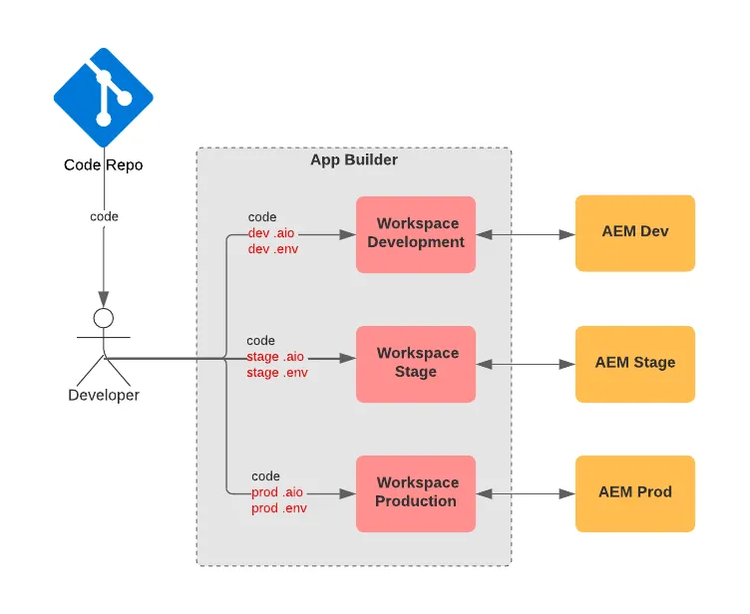
In App Builder, “workspace” is a similar term to “environment”.
Suppose you are implementing integrations for AEM with App Builder and matching with AEM environments, like Dev to Prod.
In that case, you can create additional workspaces during App Builder project creation (Stage and Prod are the default ones). Then you can bootstrap the App Builder code with aio app init and just run aio app deploy to deploy the code to the current project and workspace you are in.
There are a couple of key things to bear in mind here to ensure this approach works properly.
One is the (current) project/workspace to which the code is being deployed. This depends on your login state, and you can use aio where to check your current org, project and workspace. If this is not where you want to deploy the code, you can use aio app use to switch (the command will prompt you with instructions).
The second thing is to be aware of the configurations and environment variables/secrets that correspond to the current project and workspace. Those values are essential for the aio app deploy to work and are kept in two files .aio and .env.
Whenever you use aio app use to switch project or workspace, these two files will be overridden based on the project or workspace you select, as they are environment-specific.
It’s important to note that .env can be used for introducing the custom variables/secrets that are required for your application, and that the overriding will wipe them out as well. In this situation, you can keep a backup of .env per workspace like this :
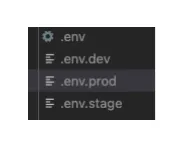
So when the switching happens, you’re able to restore the corresponding values from the backup. But remember: never commit .env and those backups into code repo since they carry credentials and secrets.
As you can see here, an aio-CLI-based approach can quickly enable developers to deploy code. But apparently, it is not robust enough to scale and risky because developers can inadvertently deploy code to an environment that was not intended.
-------------------
For enterprise-level code deployment, CI/CD is a must — and App Builder supports that too.
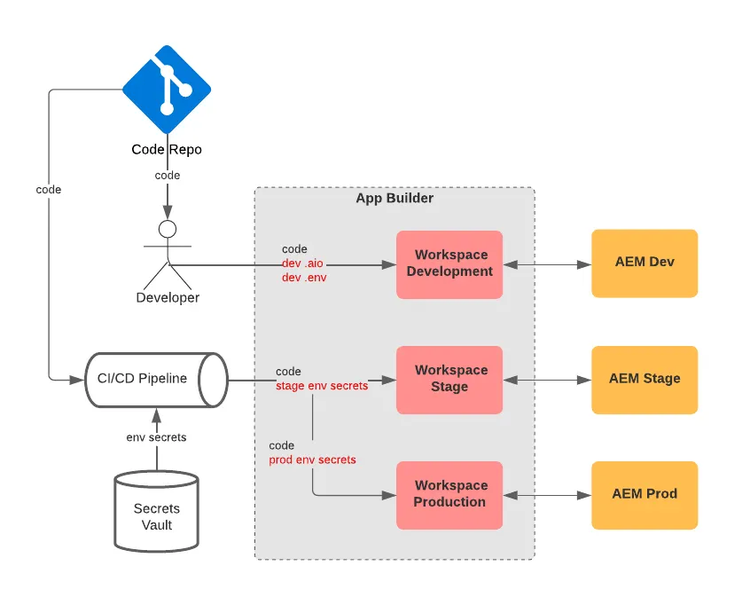
App Builder offers OOTB support for GitHub’s CI/CD. Leveraging GitHub Secrets to manage project/workspace configurations and environment variables/secrets is a huge relief compared to managing them in local .aio and .env files.
GitHub Workflow references those variables/secrets, and then invokes GitHub Actions that eventually build, test and deploy code to the targeted project and workspace.
As per the above diagram, developers can still use aio CLI to deploy code to the dev workspace(s). This could be more efficient in cases where multiple developers own different workspaces.
But when it comes to code deployment to higher environments, pipeline deployment must be followed to mitigate the risk of accidental deployment and enhance governance with code quality checks, PR reviews, unit tests, and so on. Pipeline permission can also be set to enable more restrictions.
This approach is not limited to GitHub. Other enterprise-level DevOps or CI/CD tools can definitely implement the same process.
-------------------
Now let’s take this a step further.
Imagine a situation where AEM’s code relies on some microservices deployed by App Builder to integrate with a 3rd party.
Such a situation may require two development teams — AEM and App Builder — to coordinate code deployment/release. One side may have a version dependency on the other, or both sides may have to be on a coordinated version (i.e., the latest update). Otherwise, the integration may break or produce unexpected results.
As most AEM developers know, AEM’s code deployment is done through Cloud Manager, while App Builder’s code deployment has to go through the CI/CD pipeline mentioned above.
Whenever AEM needs to deploy the latest code, the developer or deployment manager can ask the App Builder team to deploy the corresponding version.
This can work, but may become a bottleneck when a more frequent code deployment/release cadence is required. In this case, App Builder itself can help streamline the deployment process across systems.
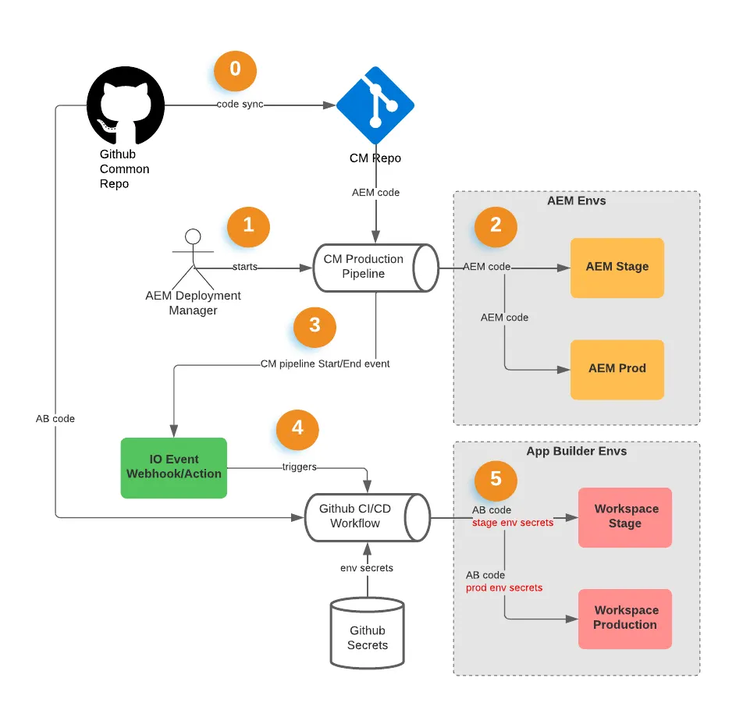
Let’s assume both AEM and App Builder code are committed to the same GitHub code repo. If this is the case, we can do something like this:
Taking this step by step:
Step 0: AEM code needs to be synced to CM’s repo, which is a common practice.
Step 1: The AEM deployment manager starts a Production pipeline to deploy code to AEM Stage & Prod (a non-Production pipeline can definitely do the same).
Step 2: CM’s Production pipeline deploys code to AEM Stage & Prod through various steps.
Step 3: At minimum, CM’s Pipeline Start event and Pipeline Execution Step Start event can be subscribed in Adobe IO events. Since CM’s Production pipeline contains deployments for both Stage and Prod, the Pipeline Execution Step Start event here is to detect when the Prod deployment gets started.
Step 4: A custom Adobe IO action (or webhook) can be implemented to handle the above-subscribed events. In this action, a “Pipeline Start” event can trigger App Builder’s code deployment to the corresponding Stage workspace. A “Deploy to Production” Step Start event can trigger App Builder’s code deployment to the Prod workspace.
(There are other CM event types/options available. You can definitely have your IO action trigger App Builder code deployment, as per your needs).
Check this link to find out more about how to trigger a GitHub Workflow using REST API.
If you want to ensure the same branch code is deployed for version consistency across AEM and App Builder, the CM git branch info can be fetched by the IO action, then passed to the REST API as the ref param.
The overall intent of this coordinated code deployment strategy is not to try to fully tackle the challenge of the high availability of code across systems. This normally requires extra strategies and techniques working in tandem.
However, this strategy does at least offer the option to automate some key processes, which gets us a little closer to that goal.
Interested in finding out more? Read more articles and tutorials by Kelvin Xu via the link.