New App Builder Console Features: Logs UI and CDN Management

Better visibility and control for your App Builder applications
Building serverless integrations should be fast and simple. That's the core promise of Adobe App Builder: remove infrastructure complexity so developers can focus on building great experiences, not configuring servers, load balancers, and CDNs. But speed extends beyond deployment. It's also about how quickly you can debug issues, monitor performance, and iterate on your applications.
We're constantly improving the App Builder developer experience with tools that make development faster and more intuitive. And today, we're excited to announce two new features in Adobe App Builder: Logs UI for easier debugging and CDN Management UI for cache control. Both bring critical capabilities directly into your browser, eliminating context switches and speeding up common development tasks.
TL;DR
New Logs UI
View all activations (successful and failed), search by action name or log content, filter by time range, and 3‑day retention in Adobe Developer Console
New CDN Management UI
Full CDN visibility, enable/disable caching toggles, instant cache invalidation, asset browser
Console Logs UI: Debug in your browser
The new Console Logs UI brings application logs directly into Adobe Developer Console, providing a browser-based interface for debugging and monitoring your Runtime actions.
Accessing the Logs UI
Navigate to: Developer Console > Project > Workspace > App Builder Logs
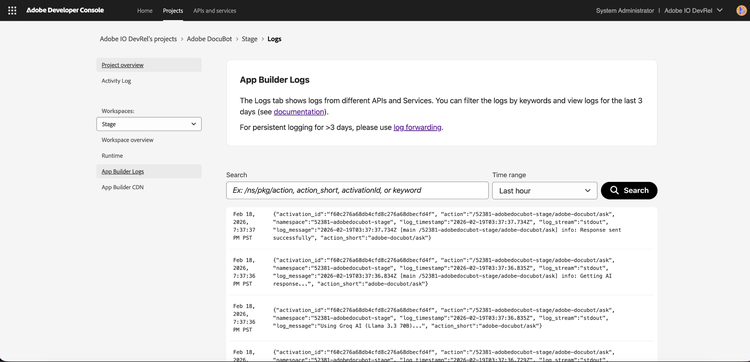
Key features
View all activations:
Unlike the default Runtime log storage (which only stores logs for failed or asynchronous activations), the Console UI shows logs from all action invocations, including successful ones.
Search and filter:
- Search by action name (full path or short name)
- Free-text search within log messages
- Filter by time range
Last 3 days accessible:
The Console UI displays logs from the last 3 days, perfect for quick debugging and recent activity monitoring.
When to use Console Logs UI
- Quick debugging: Inspect recent action invocations without CLI
- View successful activations: Access logs not normally stored
- Ad-hoc searches: Find specific log entries across activations
Need longer retention? Configure log forwarding to Splunk, Azure, or New Relic.
Learn more: Viewing Logs in Console
CDN Management UI: Control your cache from the console
We've added a new App Builder CDN page to Developer Console, giving you full visibility and control over your application's CDN configuration, no CLI required.
Accessing the CDN UI
Navigate to: Developer Console > Project > Workspace > App Builder CDN
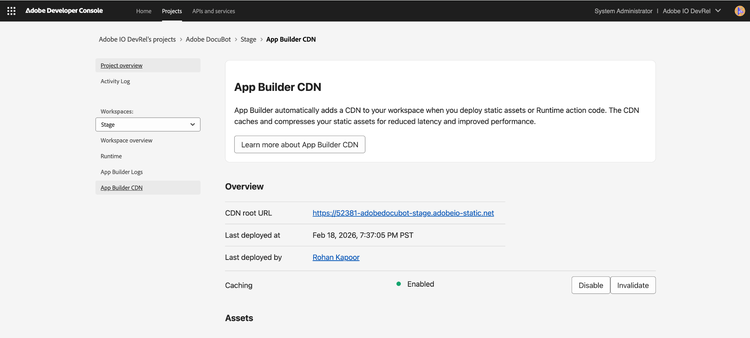
CDN Overview section
The new CDN page displays key information about your workspace's CDN:
CDN root URL:
Your unique CDN URL (e.g., https://<workspace-name>.adobeio-static.net)
Last deployed:
- Deployment timestamp
- Who deployed the latest version
Caching status:
- Visual indicator (green = enabled)
- Current cache state
Cache management controls
Disable/enable caching:
Toggle caching on or off with a single click. Useful for development or troubleshooting.
Invalidate cache:
Clear cached content to force fresh delivery. Click Invalidate to remove index.html from cache across all edge regions.
Important notes:
- Cache invalidation propagates within 10 minutes
- Only index.html can be invalidated (other assets use path versioning)
- Redeploying with aio app deploy does not automatically invalidate cache
Assets overview
Browse all deployed static assets:
- View complete file list
- See asset paths and names
- Understand what's deployed to your CDN
When to use CDN Management UI
Invalidate cache when:
- You've configured a long max-age for index.html
- You need users to see updates immediately
- Testing new deployments in production
Disable caching when:
- Debugging deployment issues
- Testing frequent changes
- Troubleshooting cache-related problems
Monitor status to:
- Verify deployments completed successfully
- Check who made recent changes
- Understand current cache configuration
Learn more: CDN Documentation
Get started
Both features are available now in Adobe Developer Console:
- Console Logs: Your Workspace > App Builder Logs
- CDN Management: Your Workspace > App Builder CDN
Resources:
About Adobe App Builder
Adobe App Builder is Adobe's serverless platform for building custom integrations and extending Adobe Experience Cloud with zero infrastructure management and enterprise-grade security.
- Get started
- Questions? Community Forum